Motion Transfer Prompts: 10 Examples Using @Image Tags (Swap People, Outfits and Props)
How to write prompts for AI motion transfer with @Video and @Image tags: who replaces whom, new outfits, accessories and props, with ten copy-paste examples and the rules that make them work.
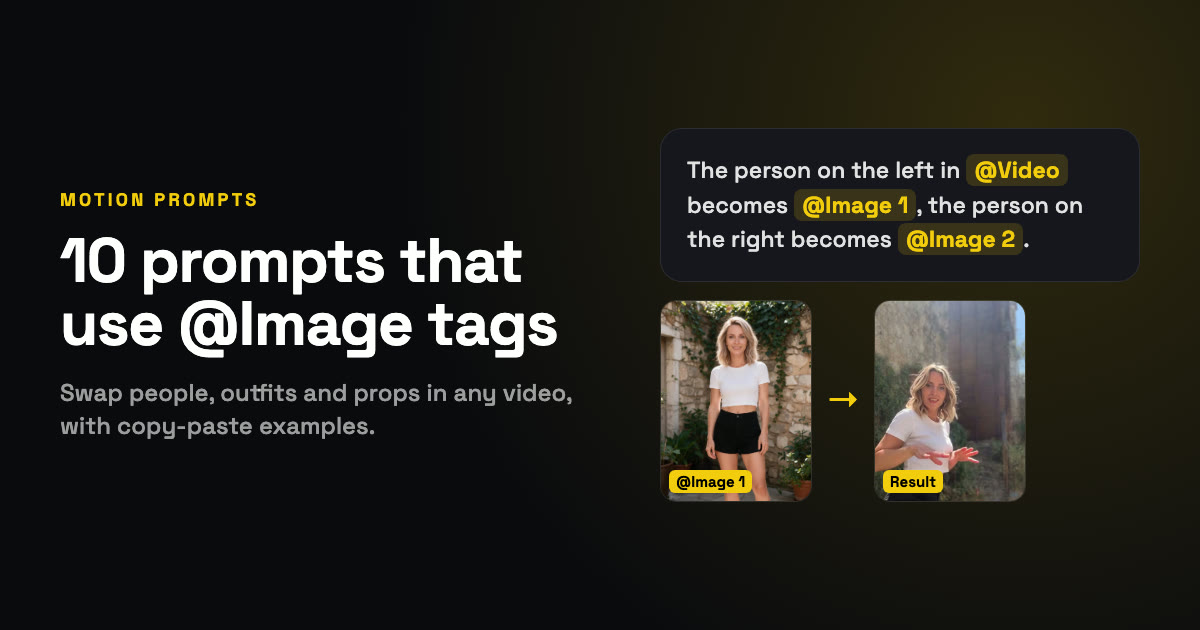
Motion transfer copies the moves from a video onto the people in your photos. Most of the time you do not need a prompt at all. But as soon as a video has more than one person, or you want a different outfit or something new in someone’s hand, a short prompt is how you take control.
This guide explains how the tags work, what the AI already does without being asked, and ten prompts you can copy, paste and adapt. They are written for the motion tool on the FIKKU home page, but the ideas carry over to most motion transfer tools.
How the tags work
Every upload gets a tag, shown as a small label on its thumbnail. You use the tags in the prompt to point at exactly the file you mean:
- @Video is the video you are copying the moves from.
- @Image 1 to @Image 4 are your photos, numbered in the order you added them.
- Tap a tag under the prompt box to drop it in at the cursor, or type it yourself. @image1 and @Image 1 both work.
- A tag needs a photo behind it. If you write @Image 2 with only one photo uploaded, you are asked to add it or remove the tag before generating.
- If you remove a photo, the ones after it are renumbered (@Image 3 becomes @Image 2), so check your tags after any change.
What happens without a prompt
Leave the box empty and the people in the video are replaced from left to right by your photos, in order. On top of that, a few rules always apply, so you never have to write them:
- Identity comes from the photo. Face, hair, skin tone, age and body type match each person’s own photo.
- Clothes come from the photo, unless your prompt says otherwise.
- No surprise accessories. Nobody gets a hat, glasses, jewelry or a watch that their photo does not show, unless you ask for it.
- The video stays the video. Moves, timing, camera and background are kept as they are.
That means a good prompt only describes what is different: who goes where, what changes about them, what they hold. Everything else is already taken care of.
10 motion transfer prompts
Each one is a starting point. Swap in your own positions, clothes and props. Results depend on the video and the photos, and small, specific changes work best.
1. Replace one dancer. The basic swap, and the one the Use example button fills in. Useful when the video has background people you want to leave alone.
Replace the dancer in @Video with the person in @Image 1. Keep their face, hair and outfit exactly as in @Image 1. Keep the moves, timing and background from @Video.2. Swap a duo, left and right. For couple and best-friend dances. Positions are the clearest way to say who is who.
The person on the left in @Video becomes @Image 1 and the person on the right becomes @Image 2. Keep their faces, hair and outfits exactly as in their photos.3. Swap only one person in a group. Put yourself into a friend group’s video and leave everyone else as they are.
Replace only the person on the far right in @Video with @Image 1. Everyone else in @Video stays exactly as they are.4. Pick someone by what they wear. When people swap places mid-dance, left and right stop meaning much. Describe them instead.
The woman in the red dress in @Video becomes @Image 1. The man in the white shirt becomes @Image 2. Nobody else changes.5. A whole group of four. Number the photos in the order people stand, and say so.
Replace the four dancers in @Video from left to right with @Image 1, @Image 2, @Image 3 and @Image 4. Each one keeps their own face, hair and outfit from their photo.6. Put your pet in the dance. A full-body photo of the animal works best. Name the details you care about, like markings or a collar.
Replace the dancer in @Video with the dog in @Image 1. Keep the dog’s breed, fur color, markings and red collar exactly as in @Image 1, and let it follow the dancer’s moves and timing.7. Change the outfit with words. Keep the face from the photo and describe new clothes. Be specific about color and cut.
Replace the dancer in @Video with the person in @Image 1. Keep their face and hair from @Image 1, but dress them in a black tuxedo with a white shirt, a black bow tie and black dress shoes.8. Take the outfit from a second photo. Not every photo has to be a person. A clear photo of an outfit, laid flat or on a hanger, can be the clothes.
The dancer in @Video becomes the person in @Image 1, wearing the outfit shown in @Image 2. Take only the face, hair and body from @Image 1 and only the clothes from @Image 2.9. Add an accessory. Because nothing is added by default, extras have to be asked for by name.
Replace the dancer in @Video with the person in @Image 1, keeping their face, hair and outfit. They also wear round black sunglasses and a thin gold chain.10. Swap a prop. Replace what someone holds with something of a similar size and shape, so the hand movements still make sense.
Replace the dancer in @Video with the person in @Image 1. The coffee cup in their hand becomes a single red rose. Keep every hand movement exactly as in @Video.Tips for better prompts
- Say who is who by position or clothing. “Left”, “right”, “far right” and “the one in the red dress” are easy to follow. “The tall one” is not.
- One change per sentence. Short sentences are followed more reliably than one long one.
- Describe what changes, not what stays. Faces, moves and the background are kept anyway, so spend your words on the difference.
- Keep swaps close in size and shape. A cup can become a rose or a phone. A cup becoming a guitar will look strange, because the hands still move like they hold a cup.
- Match the number of people. One photo per person you want to replace. Extra photos that are not tagged or described can confuse the result.
- Start simple. Run the basic swap first. Add an outfit or a prop once the people look right.
What prompts cannot do
Motion transfer is built to copy a video faithfully, so some things are out of reach. A prompt will not change the choreography, move the camera, make the video longer or swap the location. If you want a different place or a different dance, pick a different video, or browse the ready-made AI dance effects, where the scene is already set.
What it costs
The prompt is free to write and does not change the price. A video up to 15 seconds costs 20 credits at 480p or 40 at 720p HD. From 15 to 30 seconds it is 100 or 215 credits. The exact price is always on the Generate button, and failed renders are refunded automatically.
Keep reading
New to motion transfer? Start with how to put yourself in any TikTok dance, which covers picking a video and a photo. For a ready-made trend, try the midnight fridge raid.