How to Put Yourself in Any TikTok Dance: Upload the Video, Add Your Photo
Found a dance you love but it is not a template anywhere? Here is how motion transfer copies the moves from any video onto you from one photo, which videos and photos work best, and what it costs.
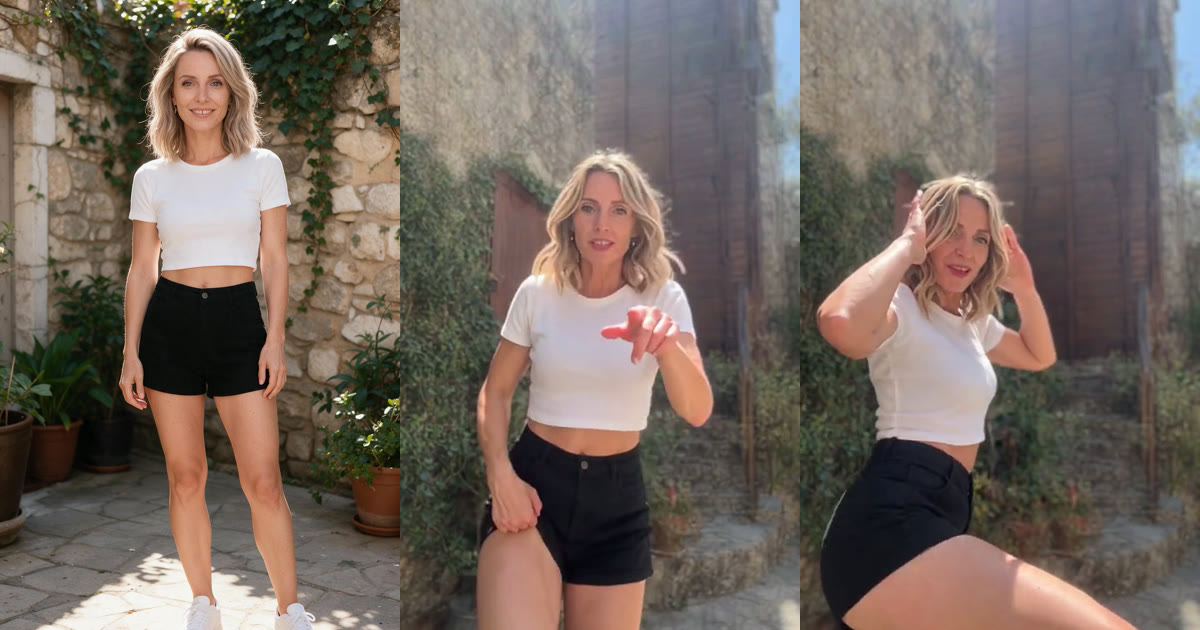
Dance templates are great when your trend is already on the list. But the dance you saw this morning probably is not a template yet. The fix is to bring the video yourself: upload the dance, add a photo of you, and an AI rebuilds the video with you doing every move.
This guide explains how that works, how to pick a video and a photo that copy well, and how to fix the most common problems.
How motion transfer works
The technique is called motion transfer. The AI studies the video frame by frame: how the body moves, the timing, the camera and the background. Then it draws every frame again with the person from your photo in the dancer’s place.
Two sources, two jobs. Your photo decides who is dancing: face, hair, skin tone, body and outfit. The video decides everything else: the moves, the rhythm, the camera, the room and the sound.
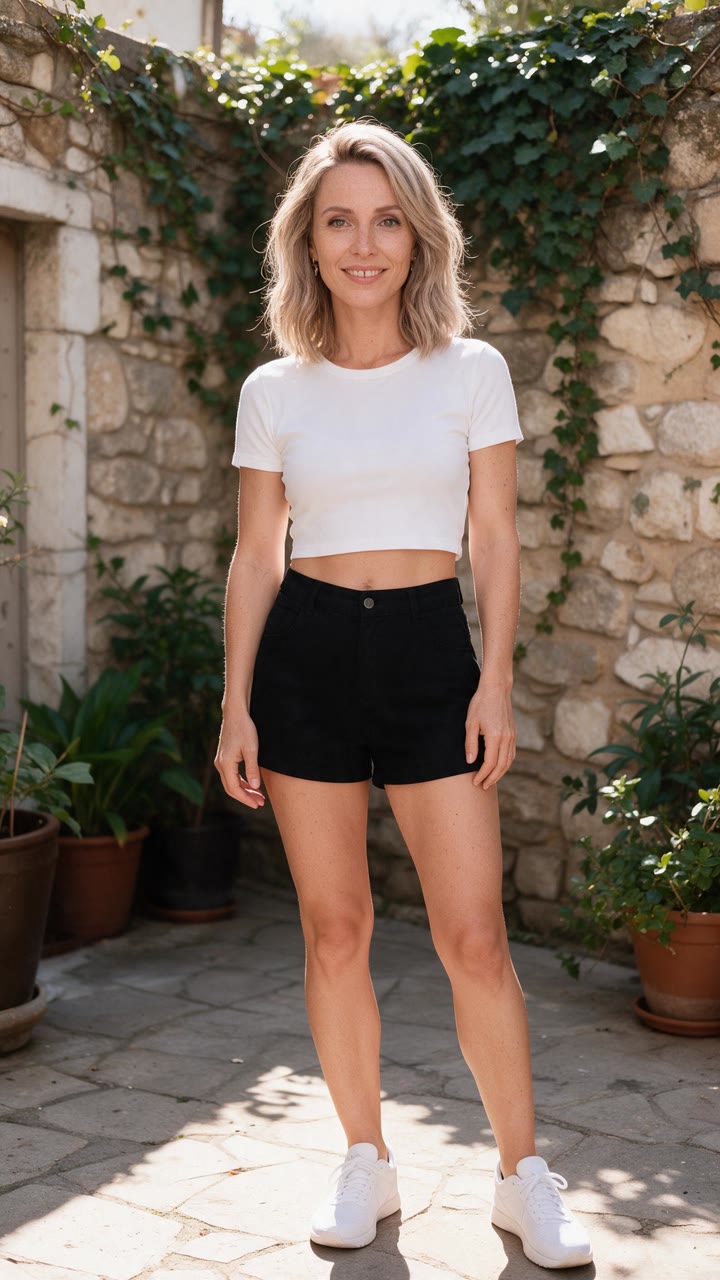 The photo
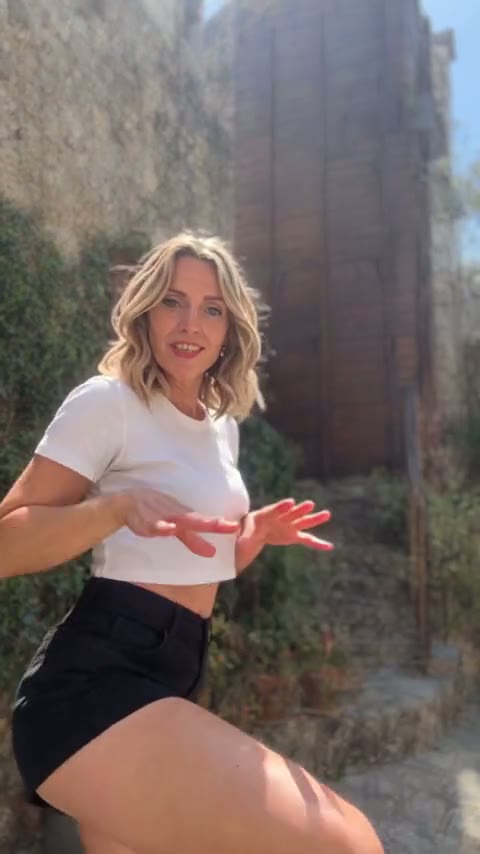 A frame of the video
What you need
- The dance video. An MP4 between 4 and 30 seconds, under 50 MB. Most TikTok, Reels and Shorts clips fit.
- A photo of you. One person, full body, facing the camera.
- A FIKKU account. Signing up is free, with no credit card needed.
Step by step
- Open the FIKKU home page. The Motion panel is open, on the Custom tab.
- Under Video to copy, upload your dance video. It gets the tag @Video and shows its length.
- Under Your photos, add your photo. It gets the tag @Image 1. If the video has more than one person, add one photo per person, up to four.
- Leave the prompt empty, or tap Use example to fill in a starting prompt. With no prompt, the people in the video are replaced from left to right by your photos.
- Pick the quality: 480p or 720p HD. The price for each is shown on the button.
- Press Generate. Rendering usually takes 5 to 10 minutes, and the video is saved in My Projects even if you leave the page.
Pick a video that copies well
The AI can only copy what it can clearly see. These choices make the biggest difference to the result:
- One main dancer, whole body in frame. Feet cut off in the video means feet guessed in the result.
- No cuts. One continuous shot copies cleanly. Jump cuts and transitions can confuse the person’s position.
- A steady or slowly moving camera. Handheld is fine; whip pans and heavy zooms are harder.
- Moves the body can actually do. Spins, hair flips and arm waves work well. Dancers hidden behind objects or other people do not.
- Little on-screen text. Everything except the person is kept, so captions, stickers and watermarks usually stay in the result.
- 15 seconds or less if you can. Short videos cost far less, and most trends loop the best 10 seconds anyway.
Pick a photo that looks like you
- Full body, head to toe. Dance videos show legs and shoes, and a full-body photo means they do not have to be invented.
- Facing the camera, in good light. A sharp face in the photo gives a sharp face in the video.
- Nothing in the way. No bag, chair or other person blocking your body. If your photo needs a clean-up, the image to image AI tool on the home page can do it.
- Wear the outfit you want. Your clothes come from the photo. If you want a different outfit, change the photo or say so in the prompt.
- No accessories you do not want. The video only adds what your photo shows, so leave the sunglasses off unless you want them dancing too.
What it costs
The price depends on the length of the video and the quality you pick, and it is always shown on the Generate button before you start:
- Videos up to 15 seconds: 20 credits at 480p, 40 credits at 720p HD.
- Videos from 15 to 30 seconds: 100 credits at 480p, 215 credits at 720p HD.
Trimming a 20-second clip to 15 seconds cuts the price to about a fifth, so it is worth a quick trim in your phone’s photo editor first. Credits come in one-time packs with no subscription, they never expire, and failed renders are refunded automatically.
Common problems and how to fix them
- The face does not look like me. Use a sharper, front-facing photo with even light and no heavy filter.
- The wrong person was replaced. In a video with several people, say who is who in the prompt, for example “the person on the left in @Video becomes @Image 1”. Our motion transfer prompts guide has ten examples.
- Hands or feet look odd in fast moves. Fast spins and motion blur are the hardest frames. A slower or clearer video helps.
- The video will not upload. Check that it is an MP4, 4 to 30 seconds long and under 50 MB. If your phone saved it as a MOV, export it as MP4 first.
- There is an extra accessory. Make sure the photo does not show it. If you want one, ask for it in the prompt instead.
Templates or your own video?
If the trend is already in our AI dance effects, the template is the easier route: one photo, and the video, timing and sound are already tuned. Use your own video when the dance is brand new, when it is your own choreography, or when you want to swap several people at once.
Use videos you have the right to use
Your own videos are always fine. For someone else’s dance, ask the creator or credit them when you post. And only use photos of yourself and of people who are happy to be in the video. Do not upload photos of celebrities, strangers or anyone who has not agreed to it.
Keep reading
Ready for more control? Motion transfer prompts: 10 examples using @Image tags shows how to swap outfits, props and specific people. For the background, read why AI dance videos look uncanny.