What Is AI Motion Transfer? How a Video’s Moves End Up on Your Photo
AI motion transfer copies the movement from a video onto the person in a photo. What it is, how it works frame by frame, how it differs from motion capture, face swap and image-to-video, what it is good at, where it breaks, and how to try it from one photo.
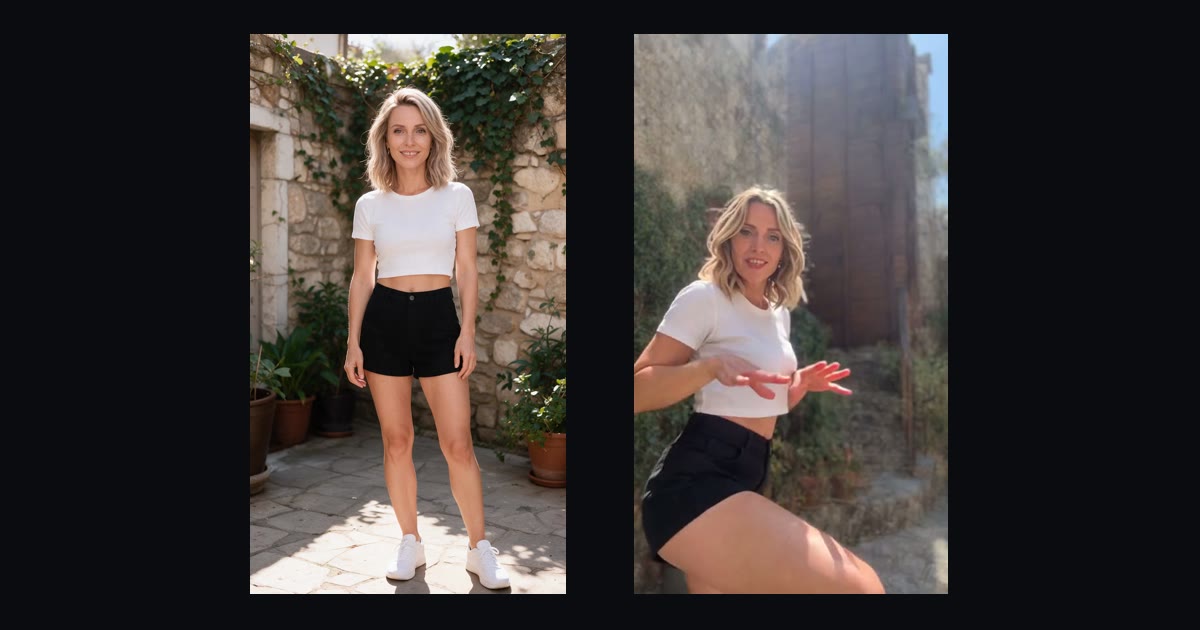
AI motion transfer takes the movement from one video and puts it on a person from a photo. You give it a clip of someone dancing and a picture of yourself, and you get the same dance back with you doing it: same steps, same timing, same camera, same room, new dancer.
It is the technique behind most of the AI dance videos on TikTok and Reels right now, and the reason people can post a trend without learning it. You can try it on the motion transfer AI page with one video and one photo. This guide explains what it is, how it actually works, how it differs from the things it gets confused with, and what it is good and bad at.
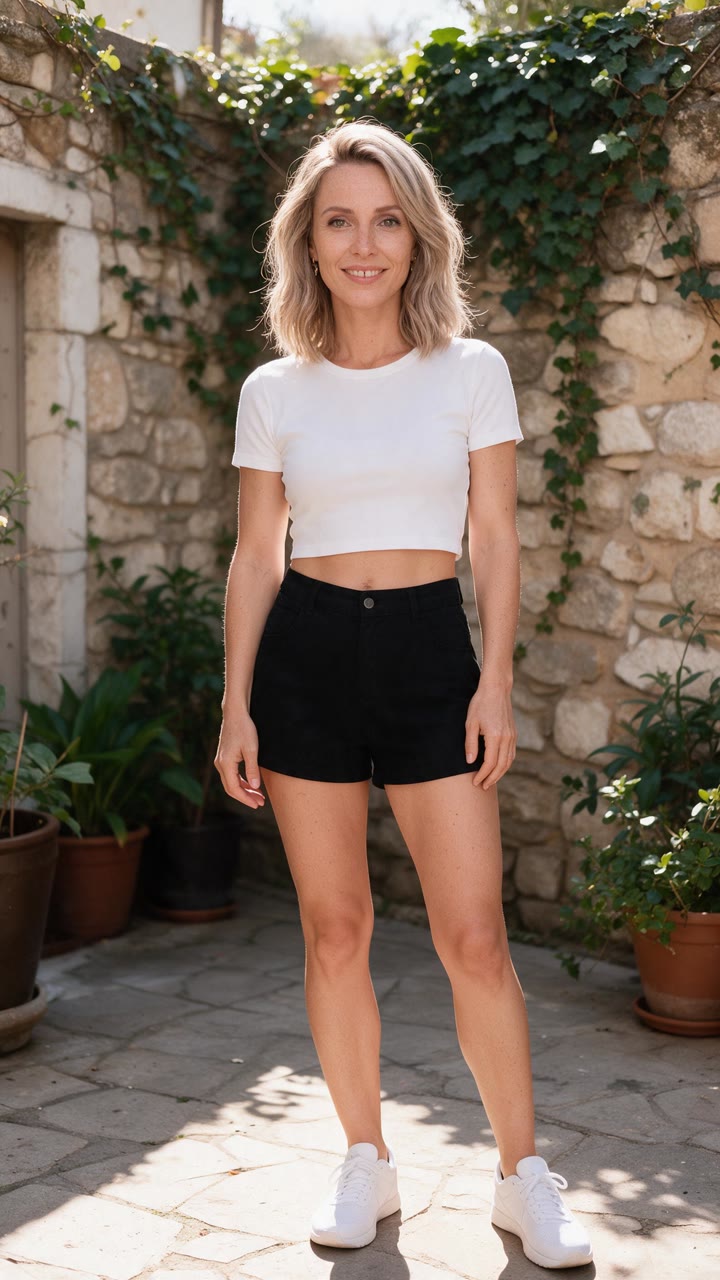 The photo
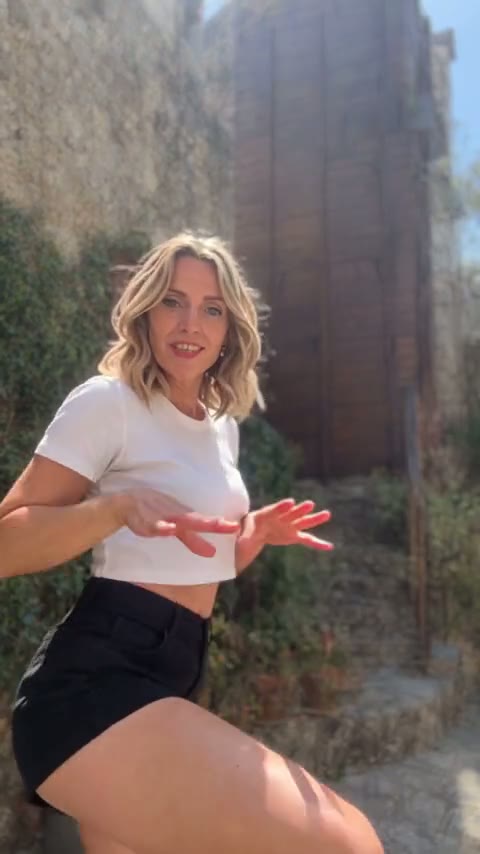 A frame of the result
The one-sentence version
You upload two things: a driving video (the moves you want) and a reference image (the person you want). The model studies how the body in the video moves, then redraws every frame with the person from the image in the dancer’s place. The video decides *what happens*; the photo decides *who it happens to*.
How motion transfer works, step by step
Different tools use different models under the hood, but the pipeline is broadly the same:
- Read the motion. The model tracks the body in the video frame by frame: where the head, shoulders, hips, hands and feet are, how they move and how fast. Older tools turned this into a stick-figure skeleton first. Newer ones read the motion directly from the pixels, which keeps subtler things like hair, cloth and hand gestures.
- Read the person. From your photo it learns what you look like: face, hair, skin tone, body shape and clothes. A full-body, front-facing photo gives it the most to work with.
- Redraw the frames. For each frame it generates a new image where your person holds the pose the original dancer held, lit the way the scene is lit, from the same camera angle.
- Keep it consistent. The hard part. The person has to look the same in frame 1 and frame 300, through spins and fast arm moves, while the background stays still. This is where good tools and bad tools pull apart.
- Put the sound back. The audio from the original video is kept, so the result is already synced to the beat.
The whole thing runs in the cloud and usually takes a few minutes for a 10 to 15 second clip. You do not need a GPU, a suit, a green screen or any software beyond a browser.
Motion transfer vs the things it gets confused with
A lot of AI video features sound similar. They solve different problems:
- Motion capture records a real performer’s movement, usually with a suit or markers, so animators can drive a 3D character. Motion transfer skips the capture: the “performer” is whoever is already in the video you have, and the output is a finished video, not animation data.
- Face swap changes only the face and leaves the body, clothes and movement untouched. Motion transfer replaces the whole person, so the body shape, outfit and skin tone come from your photo too.
- Image to video animates a photo from a text prompt and invents the movement. Motion transfer does not invent anything: the movement is copied exactly from a real video, which is why the timing lands on the beat.
- Video to video style transfer repaints an existing video in a new look (anime, painting, claymation) but keeps the same person. Motion transfer keeps the look and changes the person.
- Lip sync moves a mouth to match audio. Motion transfer moves the whole body to match a video. Some tools do both, but they are separate steps.
What it is good at
- Dance trends. One continuous shot of one person dancing is the ideal input, and it is exactly what most TikTok trends are.
- Posting without filming. No camera, no outfit, no 47 takes. One photo you already have is enough.
- People who cannot or will not dance. Grandparents, toddlers, your boss, your dog. If there is a clear photo, there can be a video.
- Groups. Good tools let you swap several people at once, one photo each, so a duet or a four-person trend works too.
- Keeping the vibe of the original. Because the camera, lighting and background are copied, the result looks like it was filmed in the same place, not pasted on.
Where it breaks
- Fast, blurry motion. Whip-fast spins and motion-blurred frames give the model little to copy, so hands and feet can look odd for a few frames.
- Hidden body parts. If the dancer’s feet are cut off or someone walks in front of them, the model has to guess, and guesses show.
- Jump cuts. A clip stitched from several shots can confuse where the person is. One continuous take copies cleanly.
- Props and contact. Holding a cup is fine. Leaning on a table, hugging someone or catching a ball are harder because the body touches things the model has to understand.
- Photos that hide you. Sunglasses, heavy filters, a bag across your body or a sideways pose all take information away from the model.
The good news is that most of these are fixed by picking a better video or a better photo, not by learning anything new. Our guide to putting yourself in any TikTok dance walks through both choices.
Do you need a prompt?
Usually not. With one dancer and one photo, the tool knows what to do. Prompts matter when the video has several people and you want to say who becomes whom, or when you want to change something: a different outfit, a hat, a rose instead of a coffee cup. If that is you, there are ten copy-paste examples in motion transfer prompts.
Templates or your own video?
There are two ways to use motion transfer, and most people end up using both:
- Templates. A ready-made trend where the video, timing and sound are already tuned. You add one photo. This is the easy route when the trend you want is already in the AI dance effects library.
- Your own video. You bring the clip. This is the route for a brand-new trend, your own choreography, or a video with several people you want to swap at once. The motion transfer AI tool takes an MP4 of 4 to 30 seconds and up to four photos.
What it costs
Free tools exist, but they tend to watermark, queue you for hours or limit you to a few seconds. On FIKKU a video up to 15 seconds costs 20 credits at 480p or 40 at 720p HD, and 15 to 30 seconds costs 100 or 215. Credits come in one-time packs with no subscription, never expire, and failed renders are refunded automatically. Signing up is free.
A note on consent
Motion transfer is only fun when everyone in it agreed to be in it. Use photos of yourself and of people who are happy to appear, credit the creator of a dance you borrowed, and leave celebrities and strangers out of it.
Keep reading
Ready to try it? Start with how to put yourself in any TikTok dance. Curious why some results feel off? Read why AI dance videos look uncanny. Comparing tools? See the best Viggle AI alternatives.