How to Create the Hotel Lobby AI Dance Effect
Step by step: put two people, or two pets, into Quavo and Takeoff’s “Hotel Lobby” performance with AI. Which photo goes where, 480p or 720p, what it costs, and what our own test run looked like.
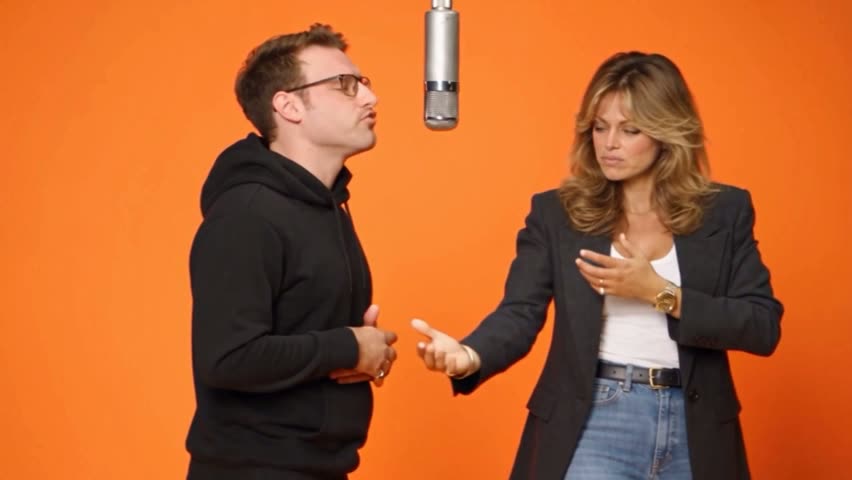
The Hotel Lobby effect puts two people on the orange set of Quavo and Takeoff’s “Hotel Lobby” performance, trading lines on a single hanging microphone. You do not need CapCut templates, a green screen, or any editing. You need one photo for each performer.
What the Hotel Lobby effect looks like
Two performers stand in front of a flat orange backdrop with one microphone hanging between them. They lean in, nod, gesture, and hand the mic back and forth in time with the track. The video is landscape and about 15 seconds long.
Every head nod, hand gesture, and handoff comes from the original performance, and so does the audio. The AI swaps in the two people, or animals, from your photos.
Where the trend comes from
“Hotel Lobby (Unc & Phew)” is by Quavo and Takeoff. It came out on May 20, 2022, as the first single from their joint album Only Built for Infinity Links, and the two performed it on A COLORS SHOW that year, on an orange set with a microphone dangling above their heads.
In September 2026 that performance became an AI meme. One of the first versions to spread swapped the duo for two cats. Within days TikTok was full of couples, best friends, pets, and cartoon characters on the same set, and on September 23 Quavo shared the original performance again.
Takeoff died in 2022, and some fans have pushed back on versions that reuse his face. This generator replaces both performers with the people in your own photos.
How to create it, step by step
- Open the Hotel Lobby AI Dance Generator and sign in. Signing up is free, with no credit card needed.
- Upload the first photo in 1. Left performer. This can be you, a friend, or a pet.
- Upload the second photo in 2. Right performer, the one who shares the mic.
- Pick a resolution: 480p for 30 credits or 720p for 50 credits.
- Press Generate Video. The price is shown on the button before you start.
- Wait while it renders. You can leave the page; the video waits for you in My Projects.
- Download it and post it with the original sound, so it lands in the trend feed.
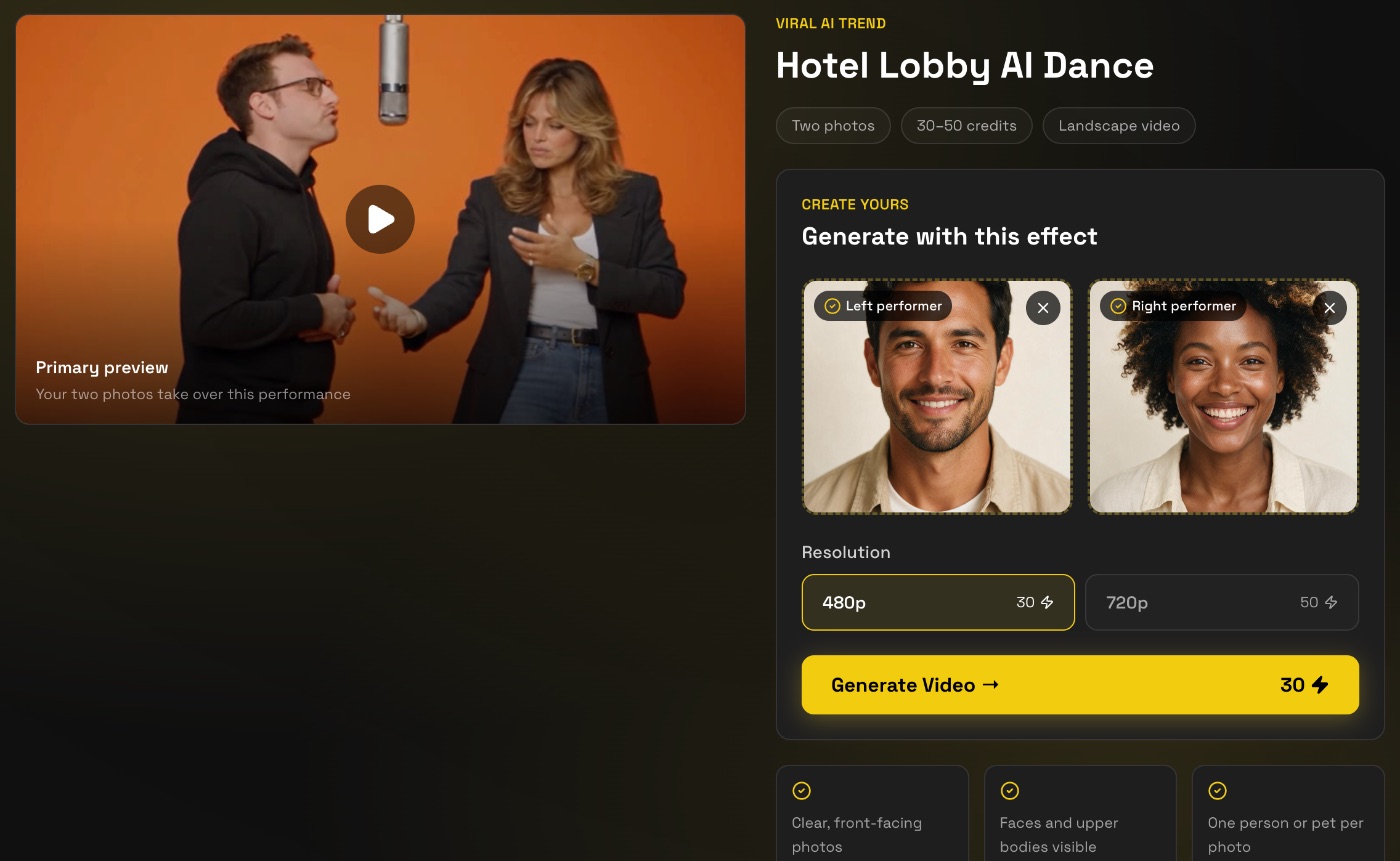
Our test run
We ran it ourselves from two AI-generated portraits, at 480p for 30 credits. It took about 6 minutes from pressing Generate to the finished video, which came back at 15 seconds with the track.
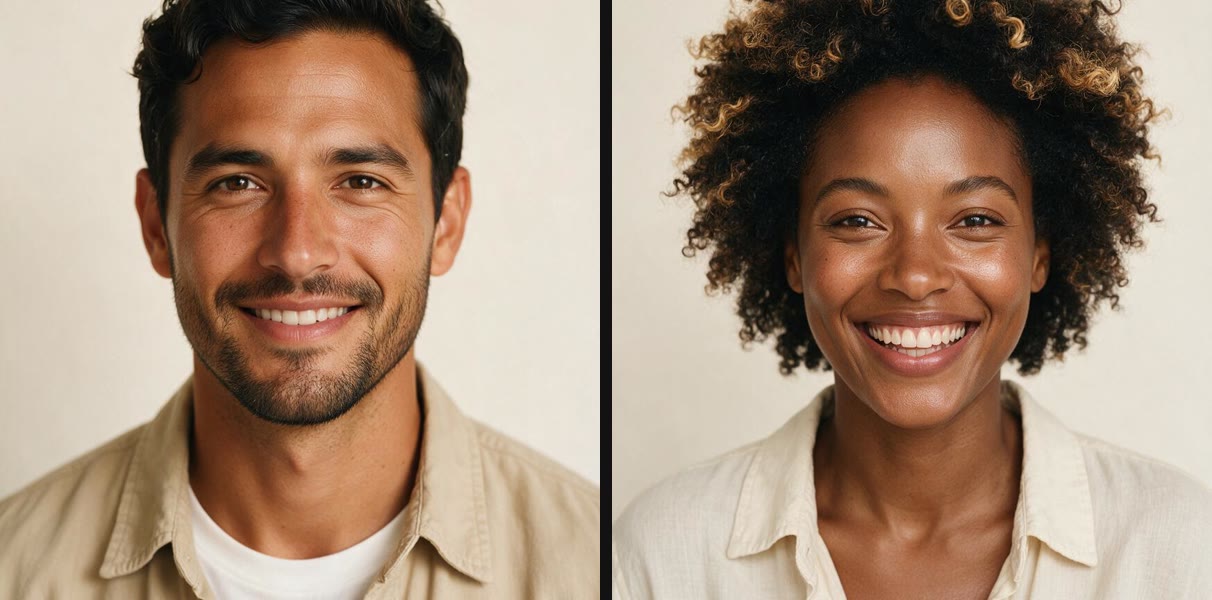 The two photos
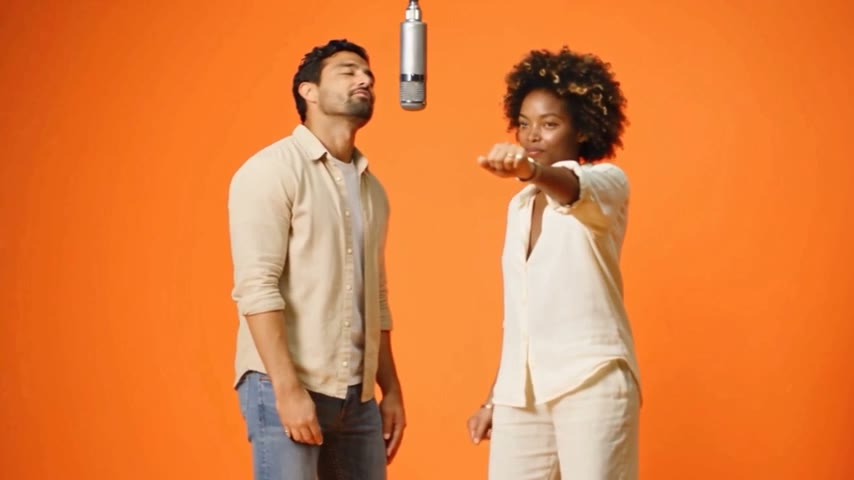 The video
Both photos only showed head and shoulders. The AI kept each face, hairstyle, and top, and filled in the rest of the outfit to match: jeans for him, light trousers for her. If the full outfit matters to you, use photos that show it.
480p or 720p?
480p is enough for a phone feed, where most people will watch it, and costs 30 credits. Pick 720p for 50 credits if you plan to crop the video, put it on a bigger screen, or want sharper faces in the close moments.
Photos that work
- One person or one pet per photo. Each box needs exactly one face.
- Faces and upper bodies visible. The performers are framed from the waist up, so a photo that shows the shoulders and chest gives the AI more to work with than a tight selfie.
- Face the camera, in even light, with nothing covering the face.
- The two photos can be from different places. What matters is that both are sharp and similar in quality.
Making a pet version
Pets are how the trend started, and they work the same way: one clear photo of each animal, facing the camera, with the head and chest in view. Two cats, two dogs, or one of each all work. For solo pet videos, try the AI cat dance and AI dog dance generators.
Ask before you upload
A duo video puts a second person on screen, so it needs a second yes. Use photos of yourself and of people who are happy to be in the video, and never photos of celebrities or strangers.
More two-photo trends
If your duo would rather scream than rap, read how to create the Smalltown Boy AI dance effect. For four more trends built for two, see AI couple videos.